

Demonstration Environment
macOS + Google Chrome
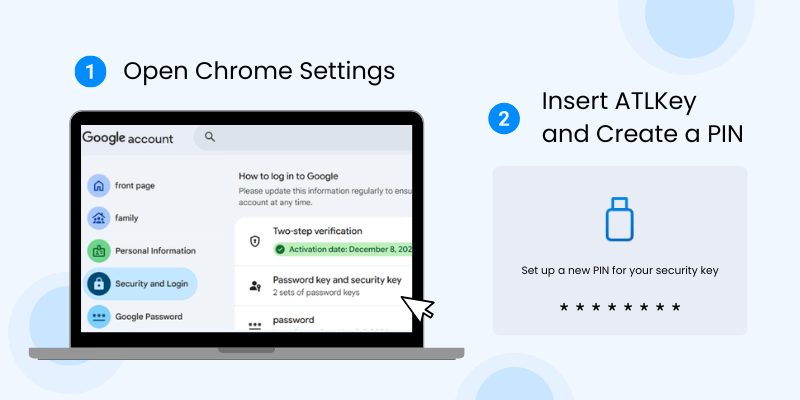
- Insert your ATLKey into your computer or mobile device.
- We recommend using Google Chrome or Microsoft Edge for setup.
- When using the key for the first time, your system or the website will prompt you to create a PIN to protect your security key.
- Insert your ATLKey into your computer or mobile device.
- We recommend using Google Chrome or Microsoft Edge for setup.
- When using the key for the first time, your system or the website will prompt you to create a PIN to protect your security key.

Navigate to the website or service you want to protect,
such as: Google, Facebook, Microsoft, GitHub
* Settings may vary between websites. In most cases, you can find "Security Key" or "Passkey" options in your account security settings.
Navigate to the website or service you want to protect,
such as: Google, Facebook, Microsoft, GitHub
* Settings may vary between websites. In most cases, you can find "Security Key" or "Passkey" options in your account security settings.
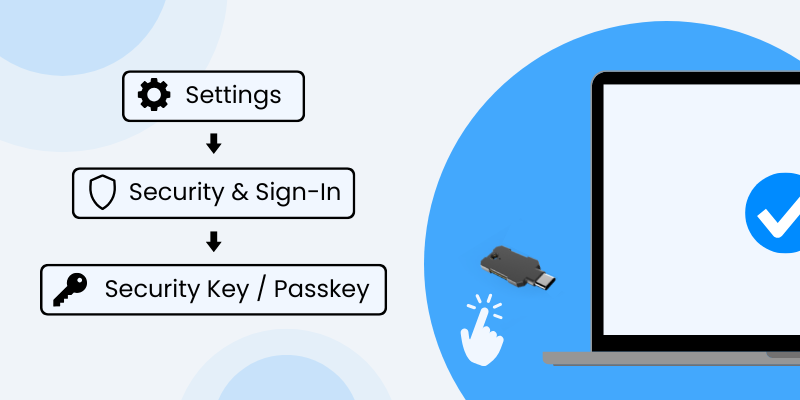
Follow the on-screen instructions and select "Add Security Key" (or a similar option).
When prompted, touch the security key to complete the registration process.
Follow the on-screen instructions and select "Add Security Key" (or a similar option).
When prompted, touch the security key to complete the registration process.
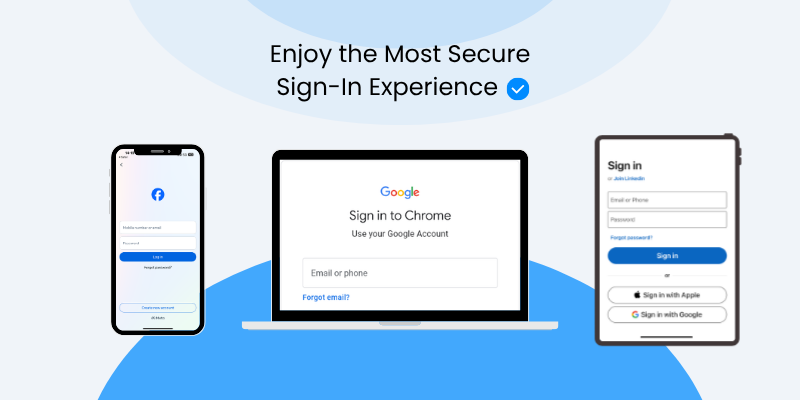
After registration is complete, sign out and sign back in to confirm that the setup was successful.
* Some websites may require you to enter your PIN during sign-in.
After registration is complete, sign out and sign back in to confirm that the setup was successful.
* Some websites may require you to enter your PIN during sign-in.
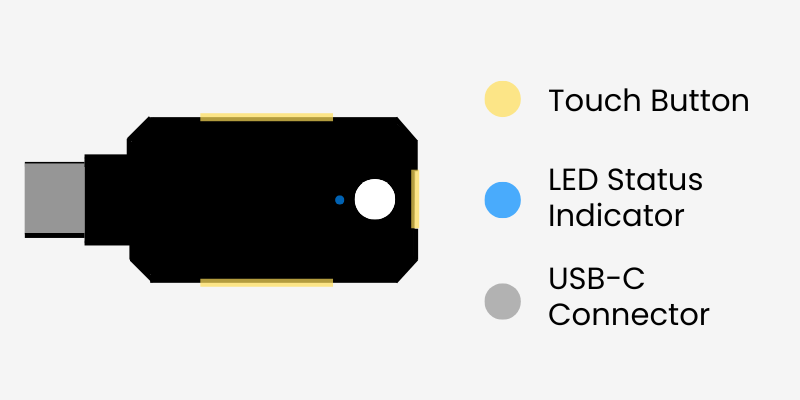
▍LED Indicator Guide
- Solid Blue — Device is powered on and ready
- Flashing Blue — Waiting for user touch
- Solid Green — Touch detected successfully
- Solid Red — Device error detected
▍LED Indicator Guide
- Solid Blue — Device is powered on and ready
- Flashing Blue — Waiting for user touch
- Solid Green — Touch detected successfully
- Solid Red — Device error detected
Product Specifications
USB-C
Water-resistant, dust-resistant, and crush-resistant
45 mm × 18 mm × 3.7 mm
Powered via USB connection (no battery or internet connection required)
Android, iOS, Windows, macOS, Linux