

macOS および Linux では、PIN コードの設定・変更・リセット は Google Chrome を使用して行います
PIN コードを設定する
1. Google Chrome を開き、Google アカウントにログインします。
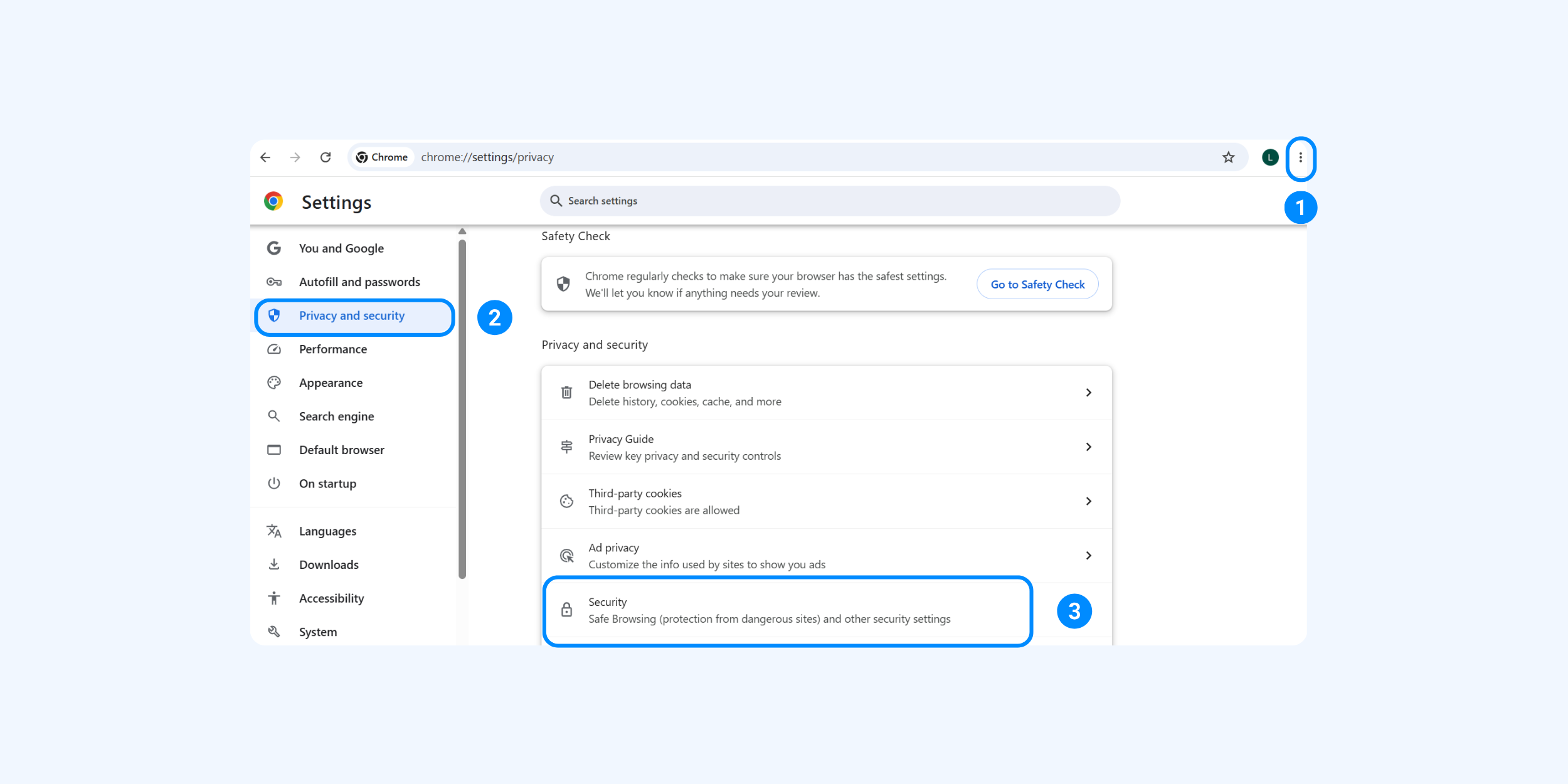
2.[︙(その他)] > [設定] > [プライバシーとセキュリティ] > [セキュリティ] を選択します。
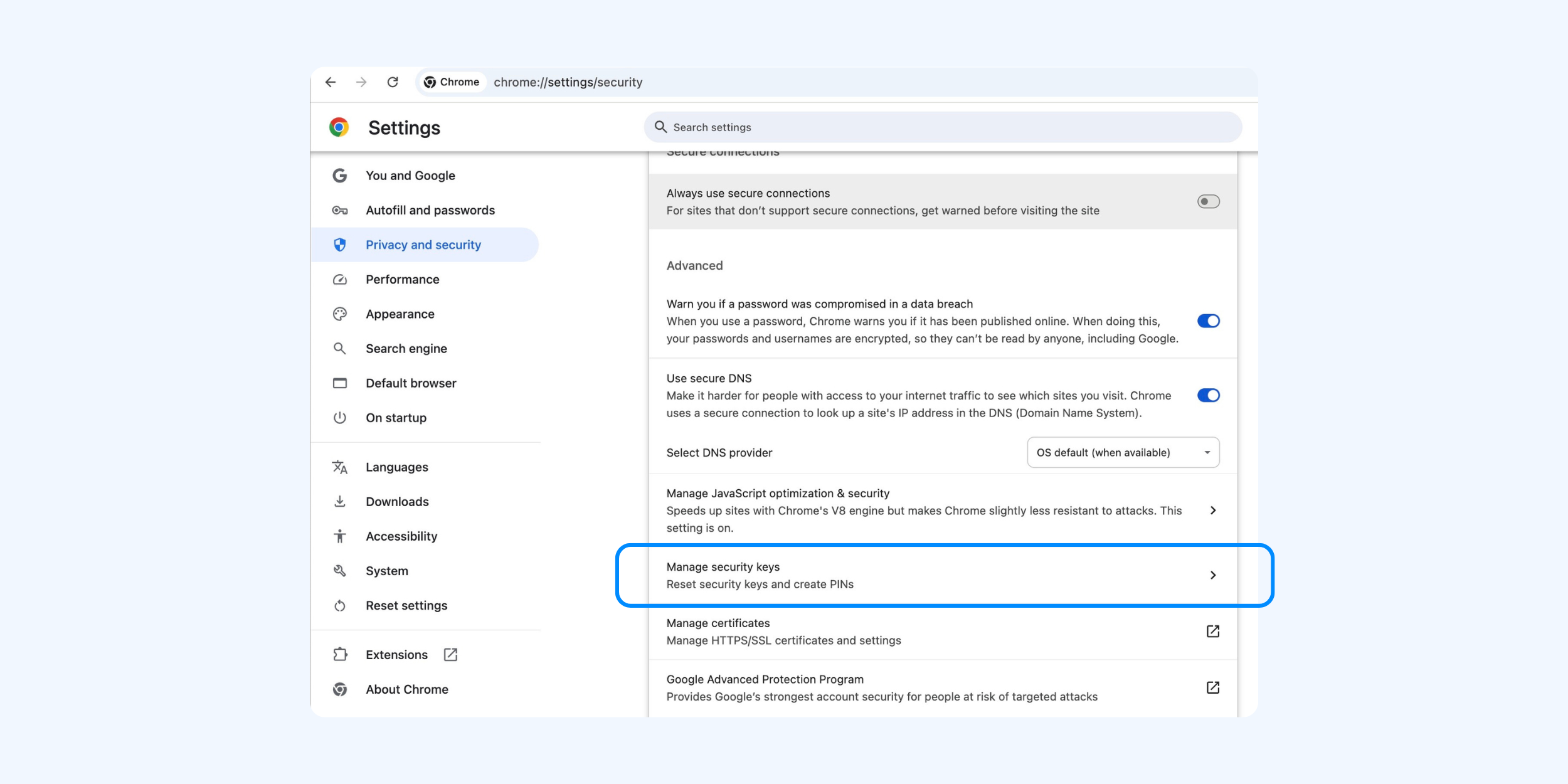
3. [セキュリティキーを管理] をクリックします。
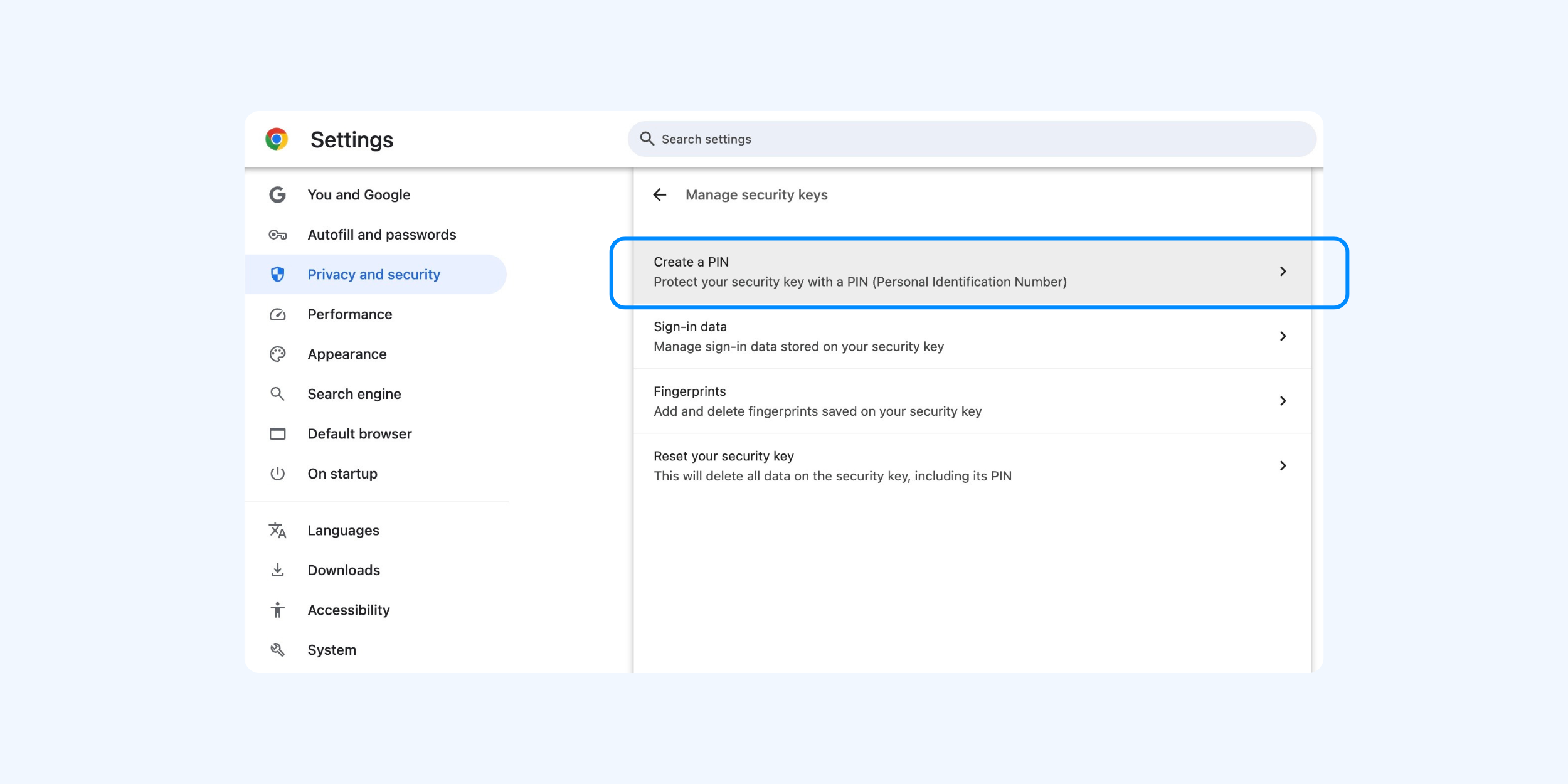
4. [PIN を作成] を選択します。
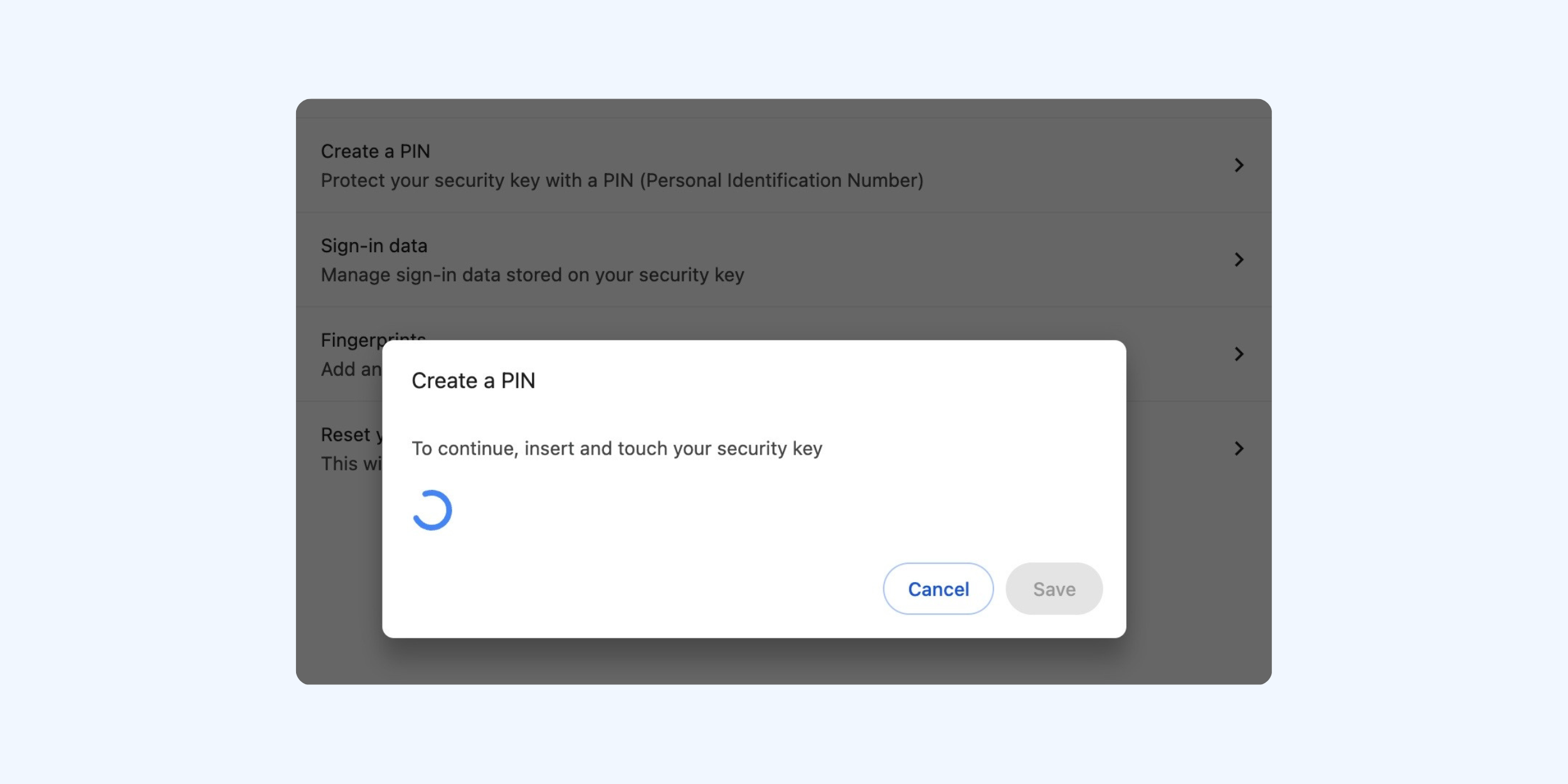
5. ATLKey を接続すると LED インジケーターが点滅します。画面の案内に従って ATLKey のタッチセンサーに触れてください。
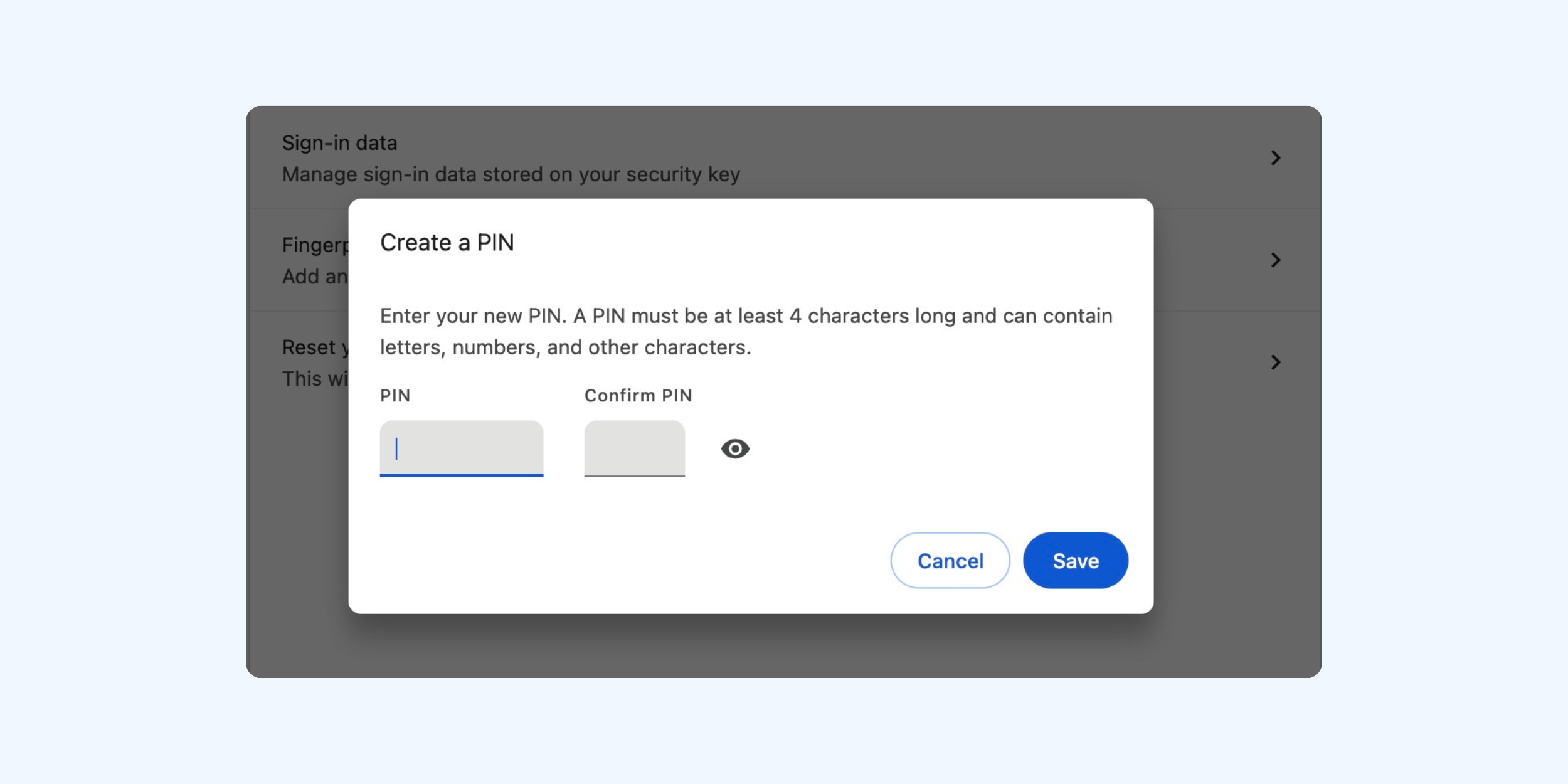
6. PIN コードを入力し、[保存] をクリックすると設定が完了します。
※ PIN コードは 4~63 文字 の設定を推奨します。英大文字・英小文字・数字・記号を組み合わせて設定できます。
PIN コードを変更する
1. 上記「PIN コードを設定する」の 手順 1~4 に従って操作します。
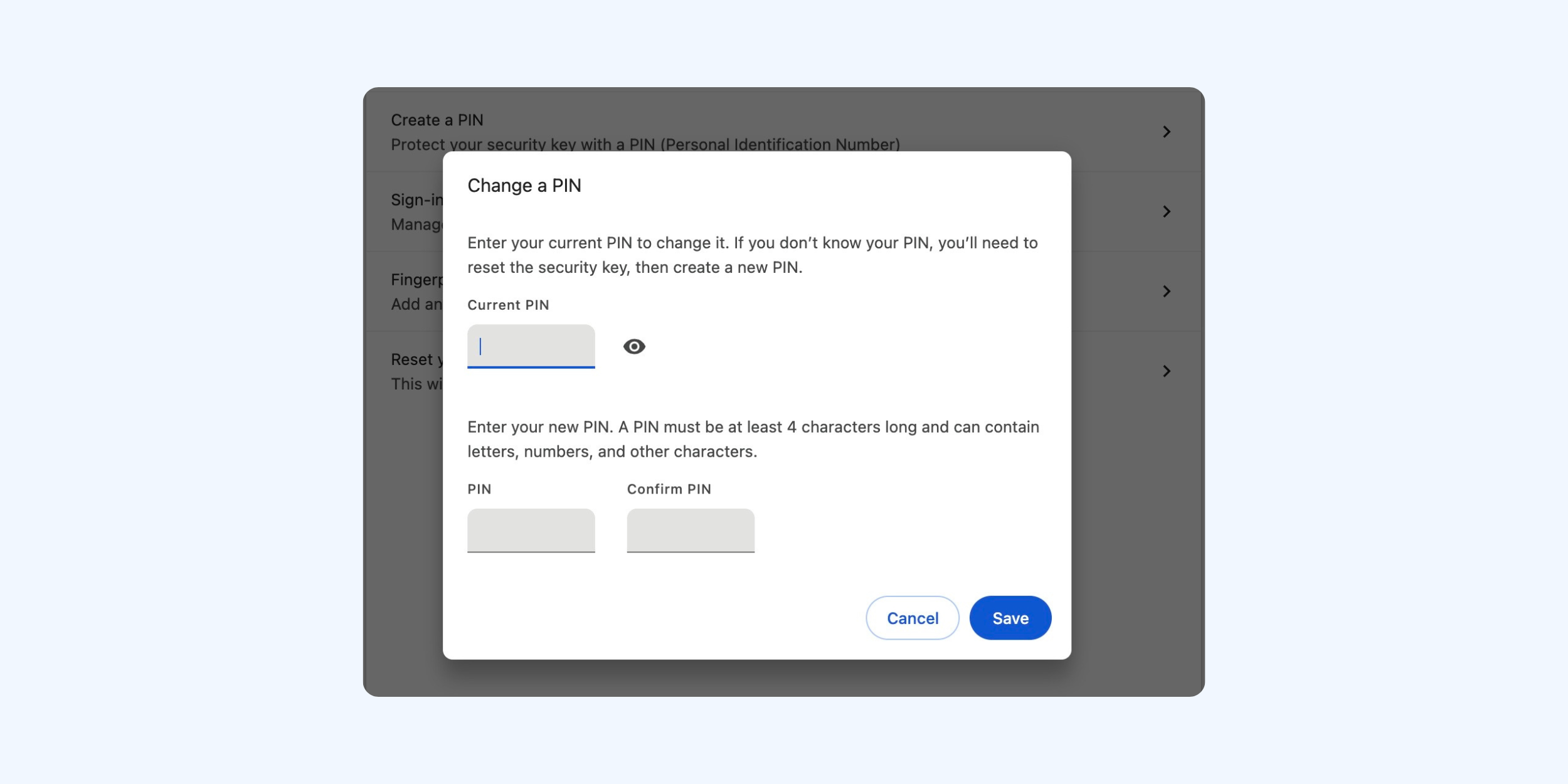
2.[PIN を作成] をクリックします。
3. 現在の PIN コードを入力し、新しい PIN コードを入力した後、[保存] をクリックして変更を完了します。
PIN コードをリセットする
1. 上記「PIN コードを設定する」の 手順 1~4 に従って操作します。
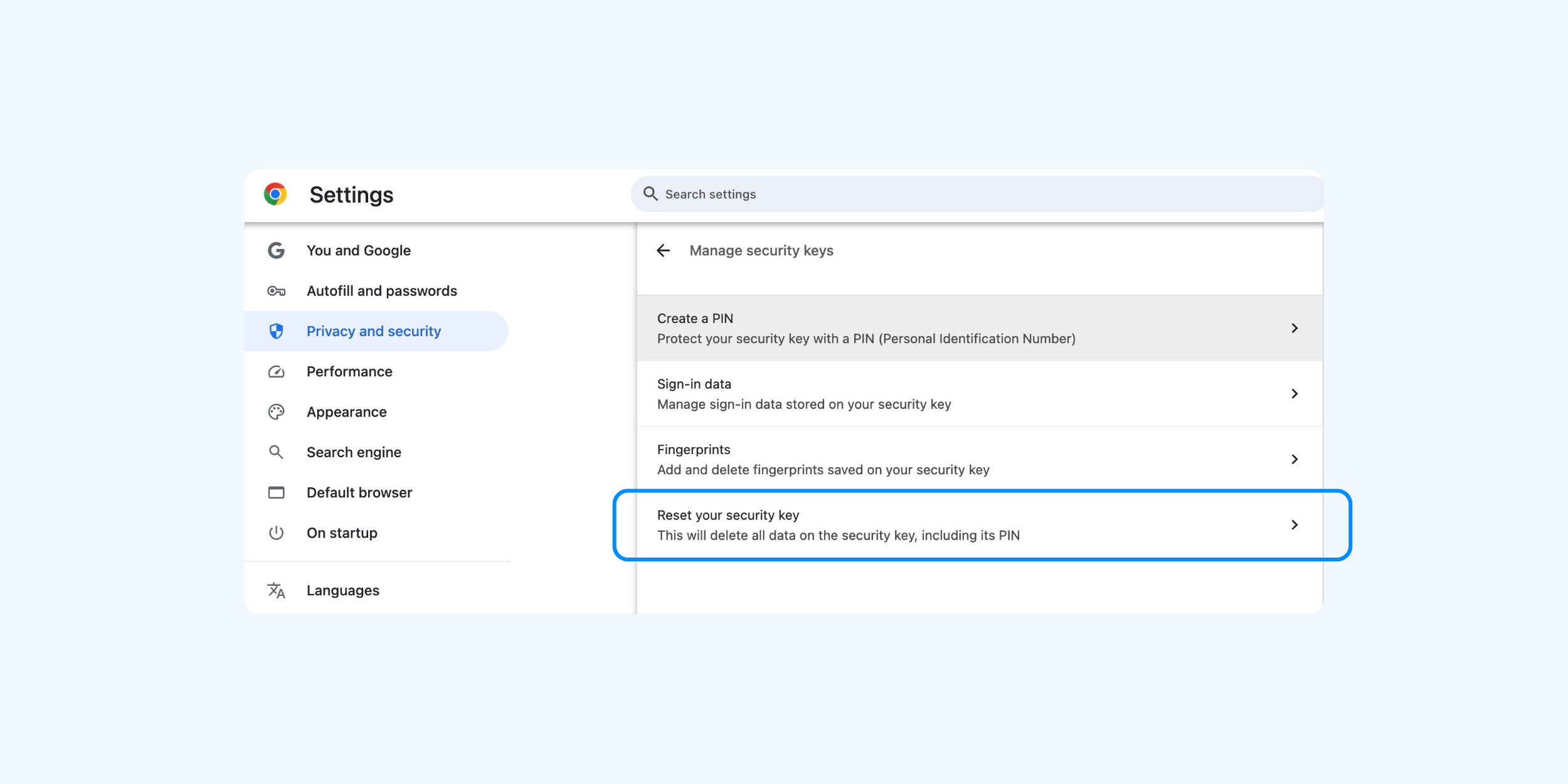
2.[セキュリティキーをリセット] をクリックします。
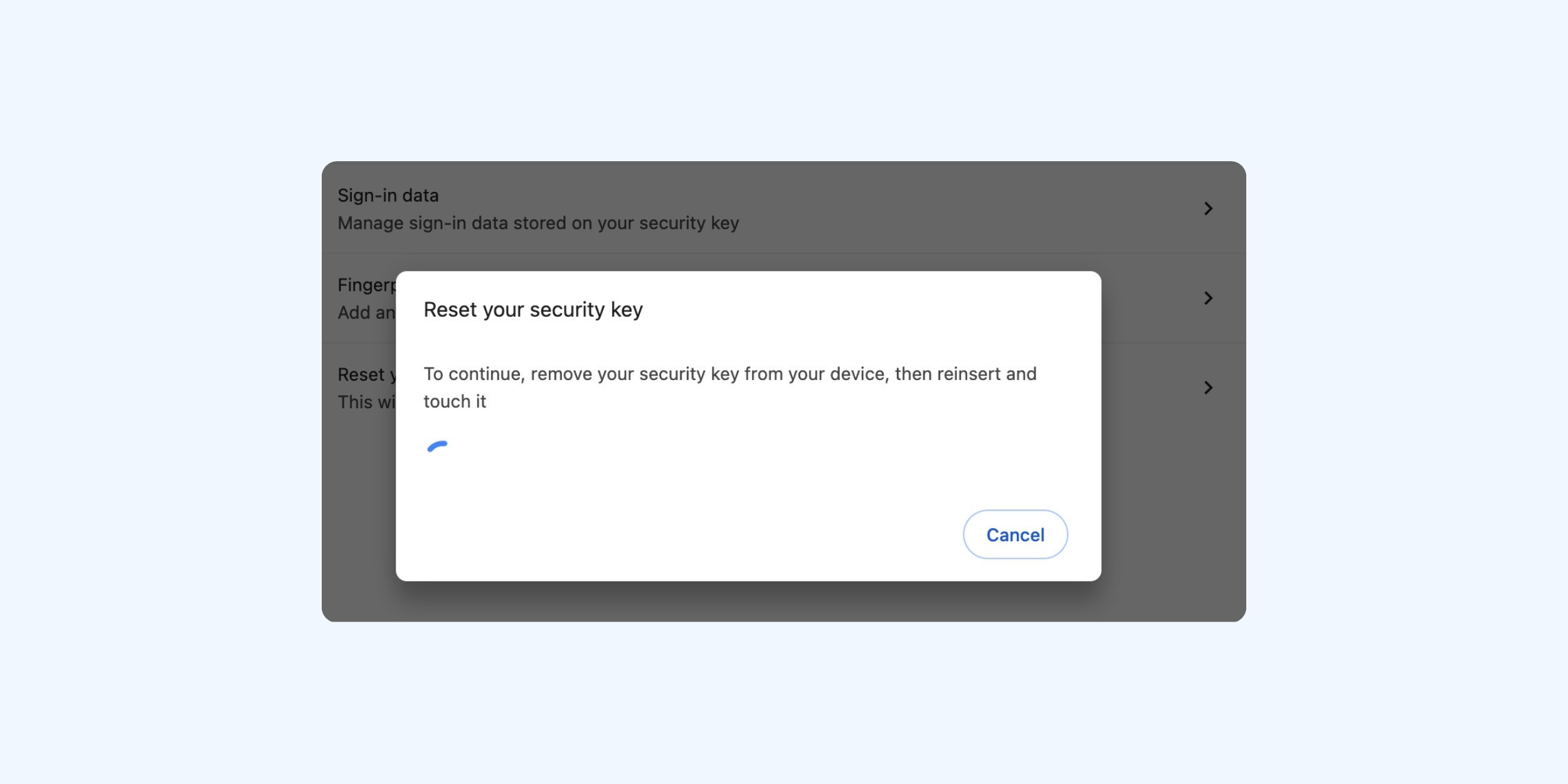
3. ATLKey を一度取り外して再度接続し、画面の案内に従って ATLKey にタッチした後、[完了] をクリックします。
ご注意
- 設定した PIN は必ず忘れないように保管してください。
- ATLKey がロックされた場合は、リセット を行わない限り再び使用することはできません。
- PIN の入力可能回数は、ご利用の OS やプラットフォームによって異なる場合があります。
- リセットを実行すると、ATLKey に登録されているすべてのアカウント情報と認証データは削除され、復元することはできません。
ATLKey を一度取り外し、再度接続するよう求められます。
リカバリーフレーズ(Recovery Phrase / Security Challenge Phrase) の入力が必要になります。
リカバリーフレーズ入力後に再度 PIN を誤入力すると、ATLKey は完全にロックされます。