Last updated: [ 2026 / 8 / 3 ]
Contents
- What you need before you start
- How to set up a passkey (Google, Apple, Microsoft)
- The mistake most people make: no backup
- Which accounts to set up first
- FAQ
- Make the Right Choice for Your Privacy
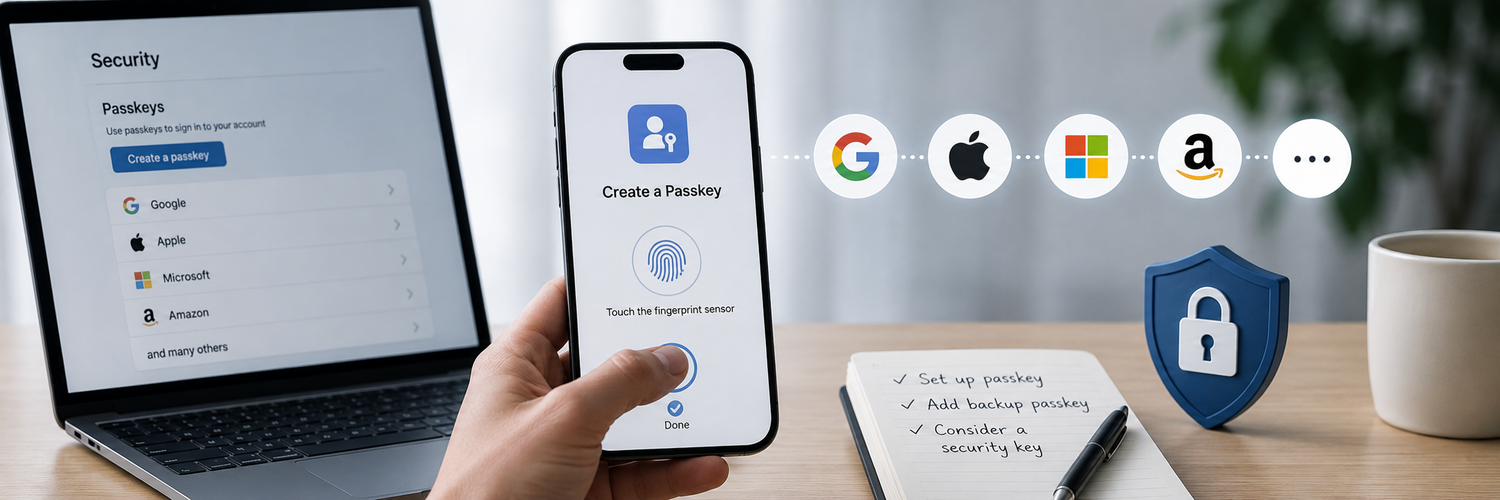
Passkeys have gone from novelty to default — Google, Apple, Microsoft, and Amazon all support them, and setting one up takes about a minute. They let you sign in with your face, fingerprint, or PIN instead of a password that can be phished or leaked. Here's how to set them up, and the one setup step most guides skip that saves you a future headache.
What you need before you start
You don't need new hardware, just a reasonably modern device:
- A phone or computer with biometric unlock or a PIN (Face ID, Touch ID, fingerprint, or Windows Hello).
- A place for your passkeys to live: your device's built-in system (Apple Passwords, Google Password Manager, Microsoft), a cross-platform password manager, or a hardware security key.
- A quick decision upfront: where do you want your passkeys stored? Each big ecosystem syncs only within itself — which matters a lot if you mix, say, an iPhone with a Windows PC.
How to set up a passkey (Google, Apple, Microsoft)
The flow is similar everywhere — sign in, find the passkey option, confirm with your device:
- Google: Go to your Google Account ▸ Security ▸ Passkeys and security keys ▸ Create a passkey, then confirm with your device.
- Apple: With iCloud Keychain on (iOS 16+ / macOS Ventura+), choose "Continue with passkey" when a site offers it; it's saved to your Passwords app and synced across your Apple devices.
- Microsoft: Go to account.microsoft.com/security, find Passkey, and follow the prompts using Windows Hello or your phone.

The mistake most people make: no backup
Here's the trap that lands people in support chats: a passkey stored only in one phone's system doesn't transfer when you switch to a different platform, and if that device is lost with nothing synced, the passkey goes with it. Avoid it by building in redundancy:
- Register a hardware security key as a passkey/credential that isn't tied to any phone or cloud — it works across ecosystems and survives a lost or switched phone.
- Add a second passkey on another device where possible.
- Keep offline recovery codes for each account as a final safety net.
Which accounts to set up first
Don't try to convert everything at once. Prioritize the accounts where a breach would cascade:
- Your email — the recovery key to everything else.
- Your password manager or wherever your credentials live.
- Financial and crypto accounts.
- Work and admin logins.
FAQ
-
Do I still need a password after setting up a passkey?
Often yes, as a fallback and for sites that don't support passkeys yet. Keep your passwords strong and unique in the meantime. -
What happens to my passkey if I lose my phone?
If it was synced (via iCloud Keychain, Google Password Manager, or a password manager), it returns when you sign in on a new device. If it lived only on that phone, you'll need account recovery — which is why a hardware key or backup passkey matters. -
Can I use passkeys if I mix Apple and Windows/Android?
Yes, but ecosystem sync won't carry across. A cross-platform manager or a hardware security key gives you passkeys that work everywhere. -
Are passkeys really more secure than passwords?
Yes. They can't be phished, reused, or leaked in a breach, and organizations rolling them out have seen account-takeover attacks drop sharply.
Make the Right Choice for Your Privacy
Passkeys are the biggest login upgrade in years — but their weak spot is being tied to one phone or ecosystem. A hardware security key holds your credentials independently of any device or cloud, works across platforms, and becomes the backup that keeps you signed in when a phone is lost or replaced. Set up passkeys on your key accounts, and anchor them with a physical key you control.